Showing posts with label free. Show all posts
Showing posts with label free. Show all posts
23 September 2012


11 July 2012
29 June 2012
Free Corel Draw training videos: Weld, trim and simplify tools
www.freecoreldrawtraining.com free corel draw x5 training video tutorials
13 June 2012
03 April 2012
01 April 2012
DOWNLOAD CorelDRAW Graphics Suite X5 FULL VERSION FREE
FULL VERSION DOWNLOADS: roomdl.com CorelDRAW Graphics Suite X5 is a versatile graphic design software suite that helps you creatively and professionally express ideas for any media. Illustrate, lay out, trace, design Web graphics and photo-edit with this complete solution for visual communication. Easily import and export content with leading file compatibility. Get going faster than ever with new, professionally designed templates and compelling learning... Category: full version downloads,free downloads,software downloads,software review
14 February 2012
Free Corel Draw training videos: Pop Art Effect
www.freecoreldrawtraining.com CorelDRAW X5 tutorial on creating pop art effects and stylings
16 January 2012
corel draw free fonts how to intall and use
www.freecoreldrawtraining.com CorelDRAW X5 tutorial on accessing, downloading and installing free fonts from freecoreldrawtraining.com
07 November 2011
Get Corel Draw X5 For Free
How to Get Corel Draw x5 Free Download the corel draw x5 free trial at www.corel.com X15 file: 94fdce60.zxxo.net
14 October 2007
Tips & Tricks Make Badge / Banner with CorelDraw
Banner/badge can made in photoshop or another software. But in this case, I’ll share the tips and tricks how to make banner / badge in CorelDraw. I use CorelDraw 11. You can try it in all version.
For example, I use badge/banner from andrastudio.com as object design.

Steps :
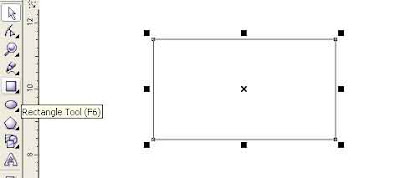
1. Open your CorelDraw. Select Rectangle Tool and start drawing by click and drag.
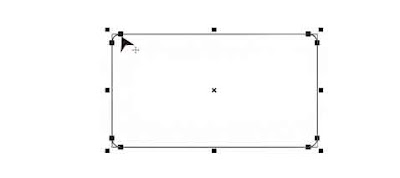
2. Change the corner shape by pointing cursor to corner and sharp arrow show. Click and drag, set the corner shape as the object.
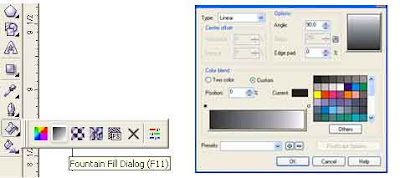
3. Ok, now select Fountain fill dialog. Choose Type: Linear, Angle: 90, Color Blend: Custom.
For example, I use badge/banner from andrastudio.com as object design.

Steps :
1. Open your CorelDraw. Select Rectangle Tool and start drawing by click and drag.

2. Change the corner shape by pointing cursor to corner and sharp arrow show. Click and drag, set the corner shape as the object.

3. Ok, now select Fountain fill dialog. Choose Type: Linear, Angle: 90, Color Blend: Custom.

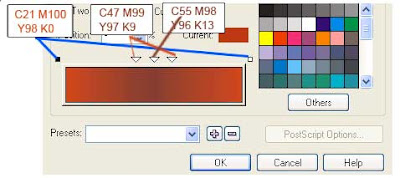
4.- Change color Left and Right bar area by click and choose the color in the right side. Choose Other for detail color. In this case , use color: C21 M100 Y98 K0 (Left-Right same color).
- Now add color in Middle bar by double click in the middle area. In this case , use color: C55 M98 Y96 K13. And next left right beside the middle: : C47 M99 Y97 K9.
5.- Next, add the words by select Text Tool. In this case, type “SAVE”, Font: arial rounded, color: white. Type again “Google”, Font: arial rounded, color: white.
- Type again “Adsense”, Font: arial rounded, color: C50 M1 Y8 K0. Set the size as your feeling. :)
- Type again “Be a good Indonesian Adsense Publisher”, Font: arial, color: white. Set the size as your feeling. :)
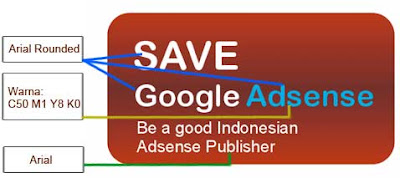
6. Finish. Thanks to : andrastudio.com.
- Now add color in Middle bar by double click in the middle area. In this case , use color: C55 M98 Y96 K13. And next left right beside the middle: : C47 M99 Y97 K9.

5.- Next, add the words by select Text Tool. In this case, type “SAVE”, Font: arial rounded, color: white. Type again “Google”, Font: arial rounded, color: white.
- Type again “Adsense”, Font: arial rounded, color: C50 M1 Y8 K0. Set the size as your feeling. :)
- Type again “Be a good Indonesian Adsense Publisher”, Font: arial, color: white. Set the size as your feeling. :)

6. Finish. Thanks to : andrastudio.com.
10 October 2007
Welcome ! Let's share about tips and tricks CorelDraw
Hello everybody, welcome to my blog. CoreDraw as one of the best vector drawing software with over 100 million users has many powerful drawing tools. The powerful tools will not work without good knowledge "how to use it"
So, with this blog, i hope we can learm, share about tips and tricks CorelDraw.
Have anice day and don't die..!
CORELDRAW
 Developer : Corel
Latest release : X3 / January 2006
OS : Microsoft Windows
Genre : Vector graphics editor
License : Proprietary
Website : CorelDRAW Homepage
So, with this blog, i hope we can learm, share about tips and tricks CorelDraw.
Have anice day and don't die..!
CORELDRAW
 Developer : Corel
Latest release : X3 / January 2006
OS : Microsoft Windows
Genre : Vector graphics editor
License : Proprietary
Website : CorelDRAW Homepage
Subscribe to:
Posts (Atom)